

Cloudways backup and restore features to securely protect your WordPress site. This guide explains how to protect your site’s important data and quickly restore it in case of issues.
1. Why WordPress Backups Are Essential
- When managing a WordPress site, data loss can occur for various reasons—server errors, plugin conflicts, or human error. Without a backup, recovering your valuable content may be difficult or even impossible.
- Regular backups ensure you can quickly recover your site during unexpected events, improving overall server reliability.
- Platforms like Cloudways offer automated backup solutions, making it easy to protect your data without manual effort.
2. Cloudways backup and restore : How to Manually Back Up WordPress
If you’re hosting your WordPress site on Cloudways, the platform provides automatic backups with a retention period of 7 days. However, it’s recommended to perform manual backups when making significant changes to your site.
(1) Log into your Cloudways dashboard.
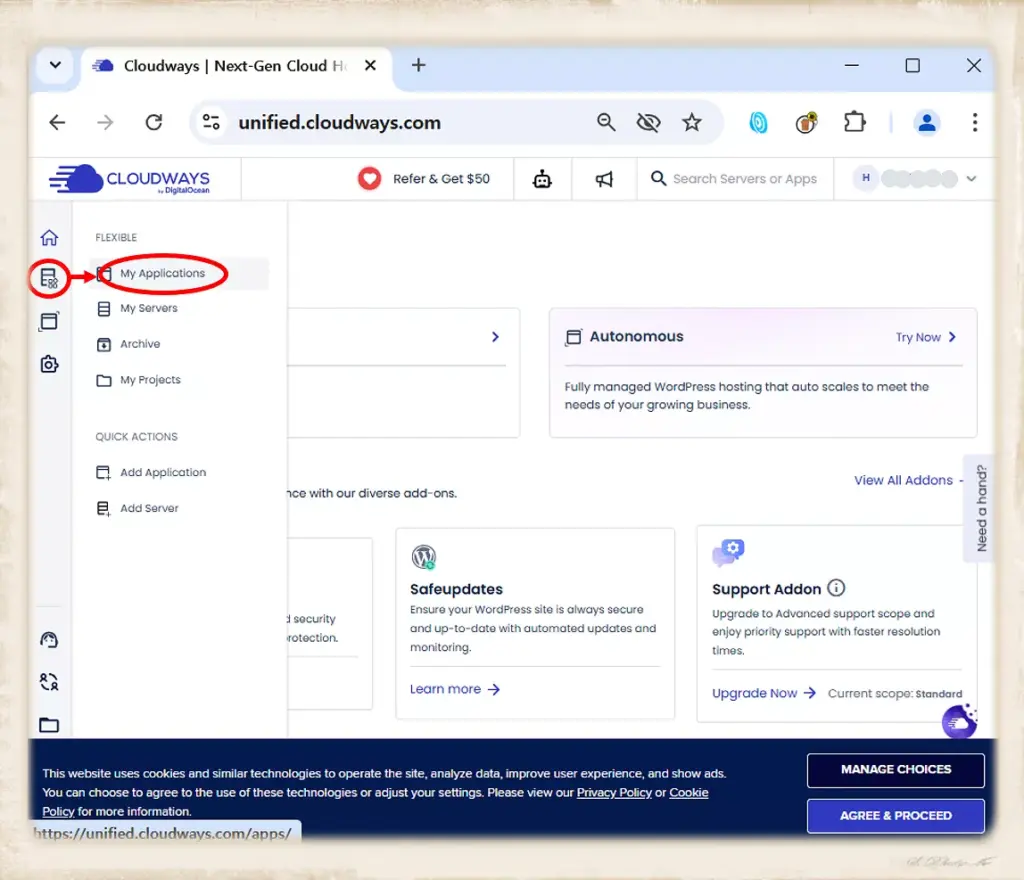
(2) Navigate to your Application.
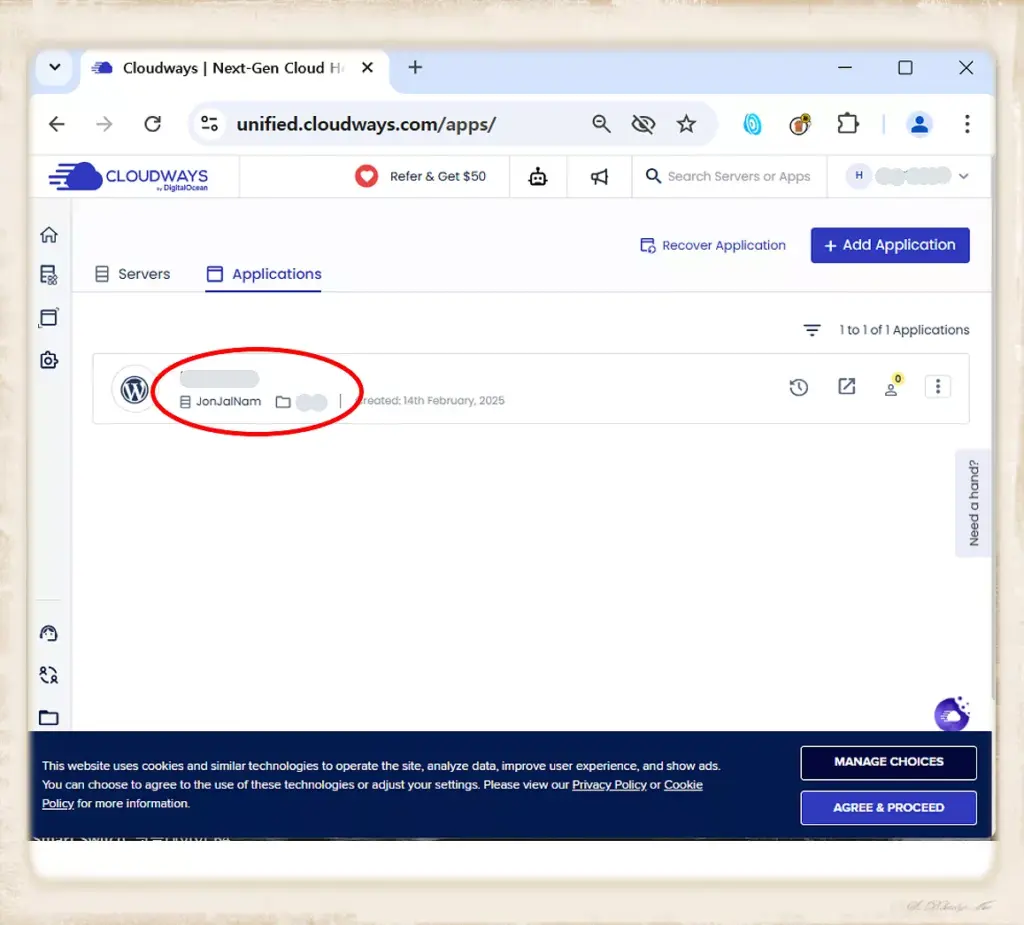
(3) Go to Backup and Restore.
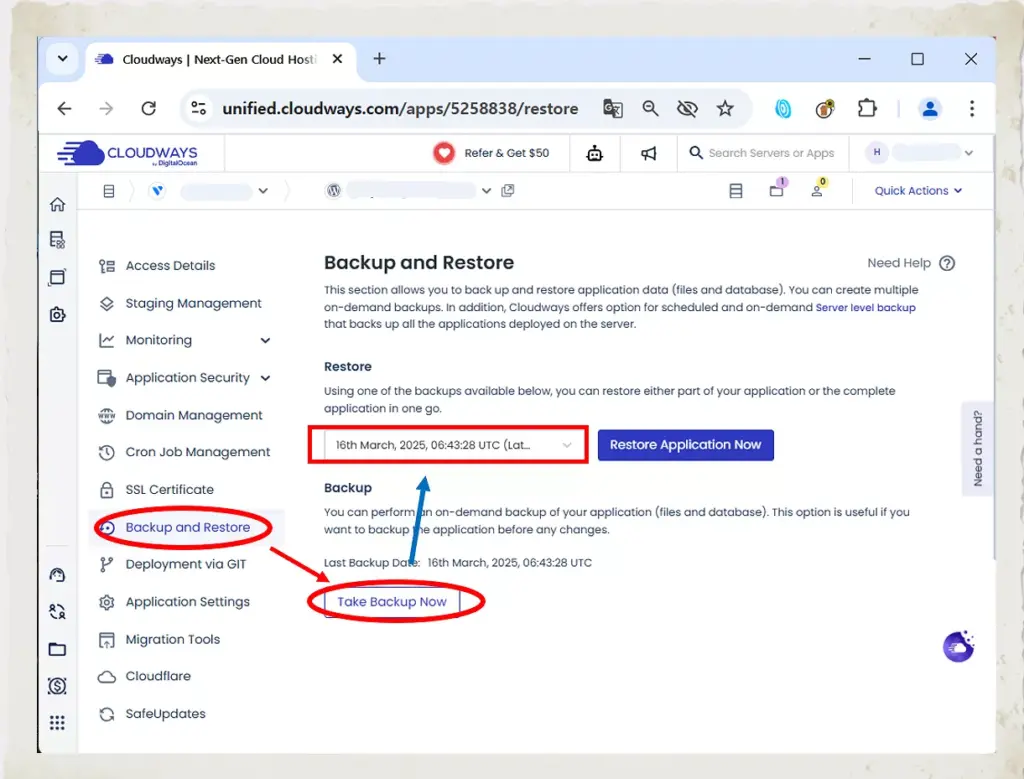
- Click Take Backup Now.
- Once completed, the date and time of the backup will be recorded.
3. Cloudways : How to Restore WordPress Backups on Cloudways
Cloudways also offers a user-friendly restore function that allows you to recover your site with just a few clicks.
(1) Access your Application via the dashboard.
(2) Go to the Backup and Restore section.
(3) Select a backup from the list (up to 7 days old).
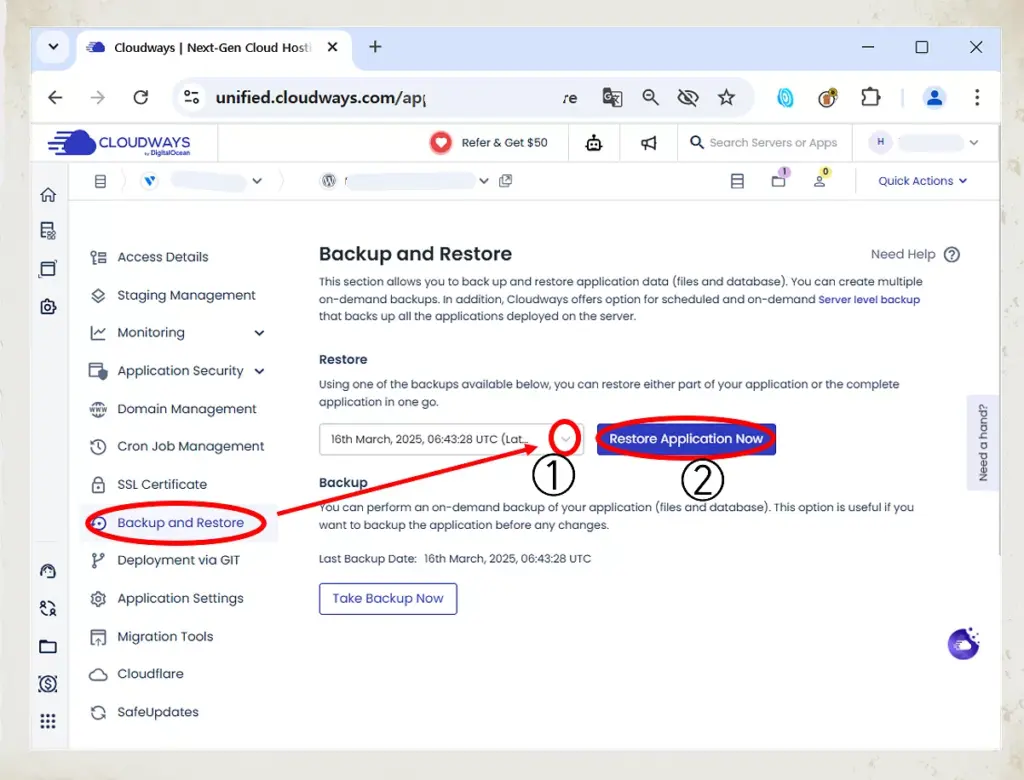
(4) Click Restore Application Now.
(4) You’ll be prompted to choose a restore type
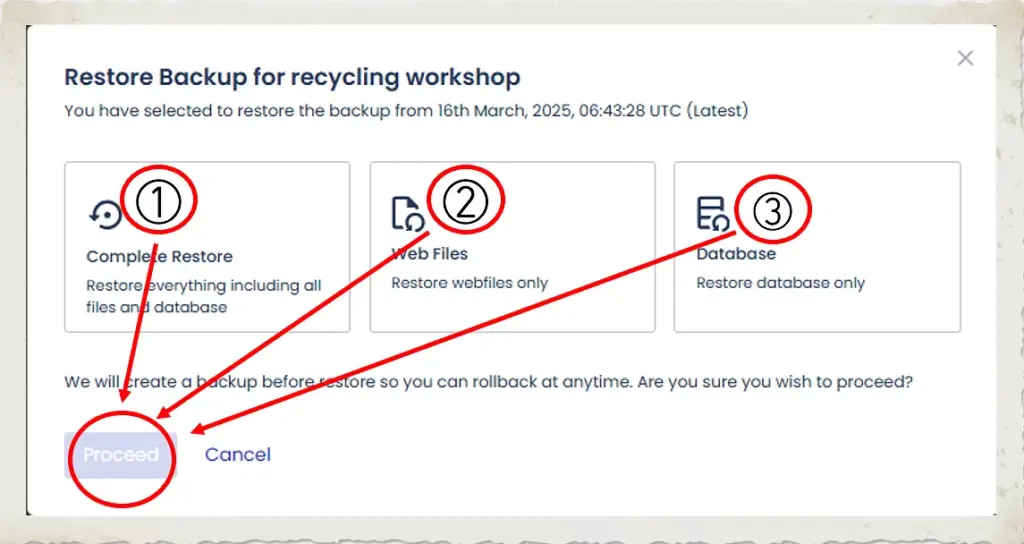
- ①Full Restore, ②Web Files Only, ③Database Only, Choose the appropriate option based on the issue you’re facing.
(5) Rollback Option
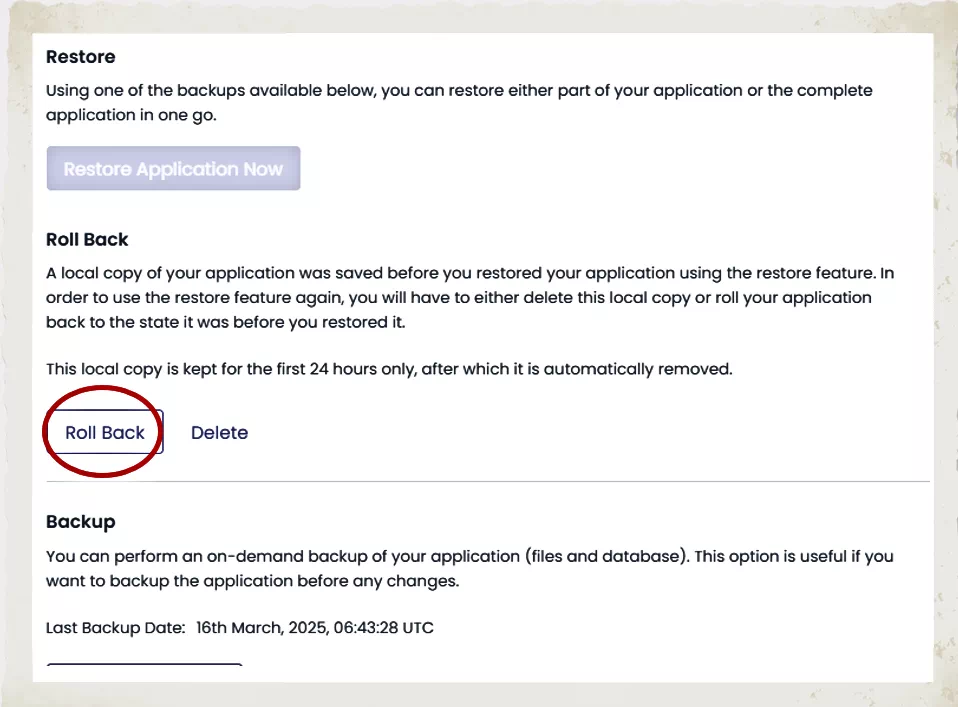
- If you accidentally restore the wrong version, you can use the Rollback function. This will revert your site to its previous state before the restore. Note: Rollback backups are automatically deleted after 24 hours.
- Even though Cloudways provides strong backup features, unpaid hosting fees can result in server and backup deletion after 15 days.
- To avoid data loss:
Set up auto-payment with a valid credit card.
Preload funds to your account to avoid billing failures.
Always keep an external backup solution in place, especially when making critical updates.
If you would like to learn how to rename servers or applications in Cloudways, click the link below: